Thursday, 14 May 2020

Create an Active Directory and DNS Server on WIndows server

Step-By-Step: Setting up Active Directory in Windows Server 2016

Referenced from - https://docs.microsoft.comen-ca/archive/blogs/canitpro/step-by-step-setting-up-active-directory-in-windows-server-2016

Before the AD install however it is important to understand what is the minimum requirement to install windows server 2016. Details are as follows:
Processor
• 1.4 GHz 64-bit processor
• Compatible with x64 instruction set
• Supports NX and DEP
• Supports CMPXCHG16b, LAHF/SAHF, and PrefetchW
• Supports Second Level Address Translation (EPT or NPT)
Coreinfo is a tool you can use to confirm which of these capabilities you CPU has.
RAM
• 512 MB (2 GB for Server with Desktop Experience installation option)
• ECC (Error Correcting Code) type or similar technology
Storage controller and disk space requirements
Computers that run Windows Server 2016 must include a storage adapter that is compliant with the PCI Express architecture specification. Persistent storage devices on servers classified as hard disk drives must not be PATA. Windows Server 2016 does not allow ATA/PATA/IDE/EIDE for boot, page, or data drives.
The following are the estimated minimum disk space requirements for the system partition.
Minimum: 32 GB
Network adapter requirements
Minimum:
• An Ethernet adapter capable of at least gigabit throughput
• Compliant with the PCI Express architecture specification.
• Supports Pre-boot Execution Environment (PXE).
A network adapter that supports network debugging (KDNet) is useful, but not a requirement.
So in my demo I am using a virtual server with windows server 2016 datacenter. In order to setup active directory we need to log in as local administrator. First thing to check is IP address configuration.
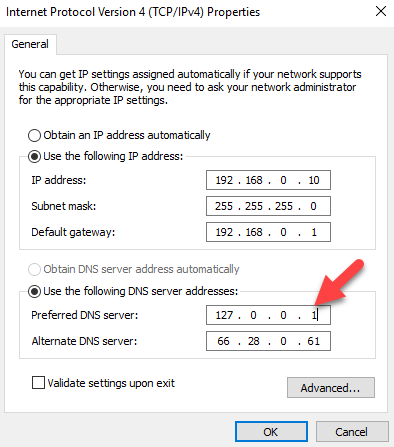
1) Once Active directory setup on the server, it also going to act as DNS server. There for change the DNS settings in network interface and set the server IP address (or local host IP 127.0.0.1) as the primary DNS server.
2016AD1
2) Then open the server manager. Go to PowerShell (as administrator) and type ServerManager.exe and press enter.

2016AD2
3) Then on server manager click on add roles and features
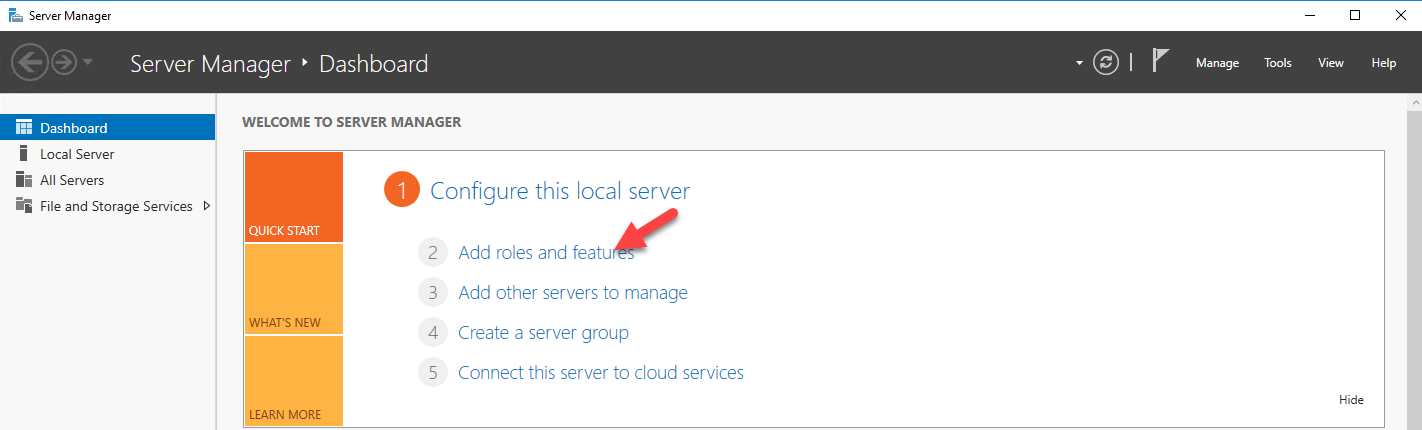
2016AD3
4) Then it opens the add roles and features wizard. Click on next to proceed.
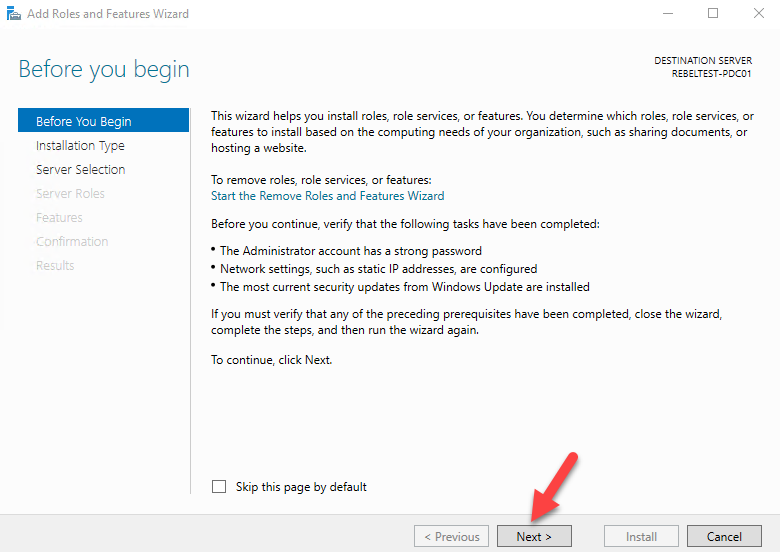
2016AD4
5) Then in next window keep the default and click next 2016AD5
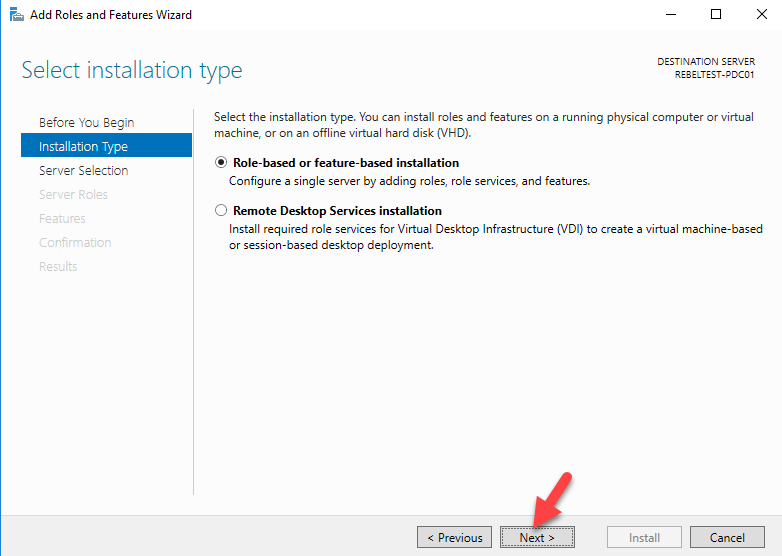
6) Since its going to be local server, in next window keep the default selection.
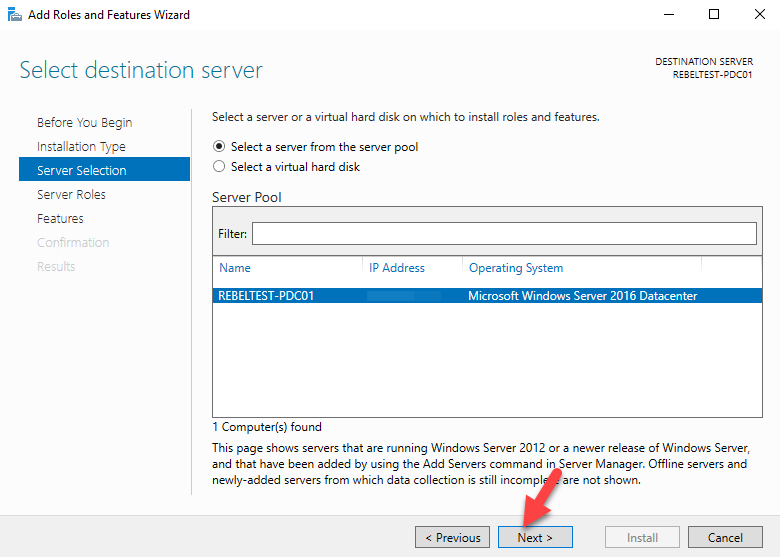
2016AD6
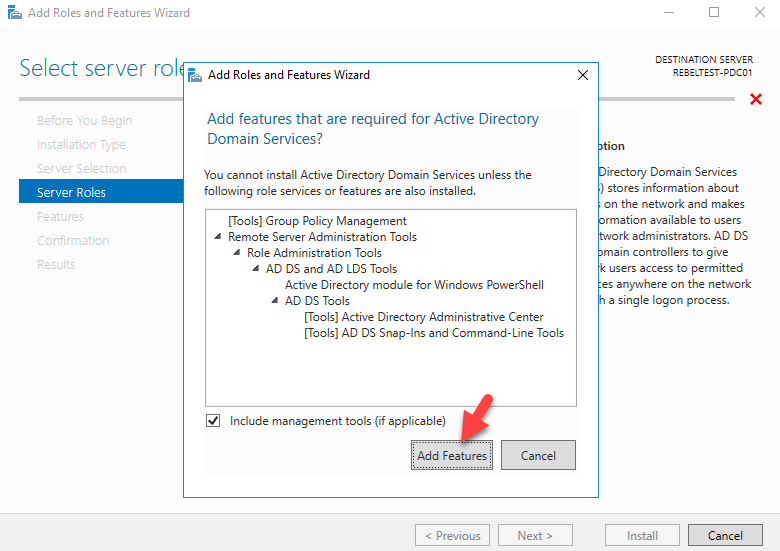
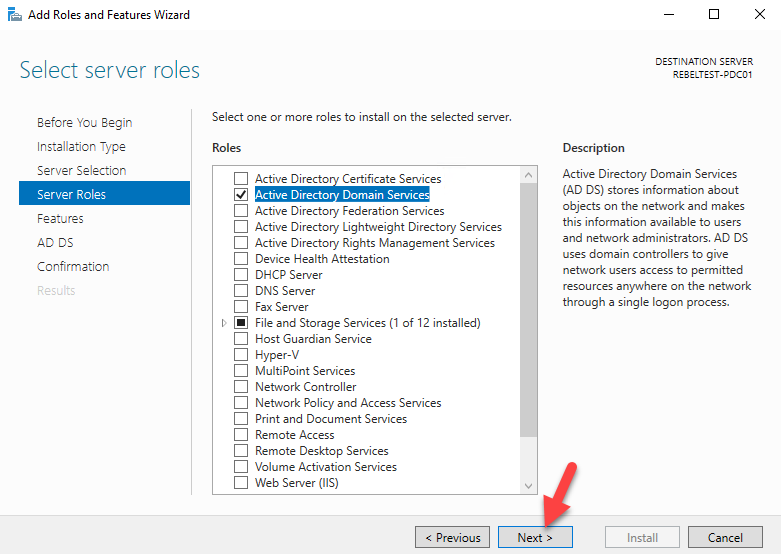
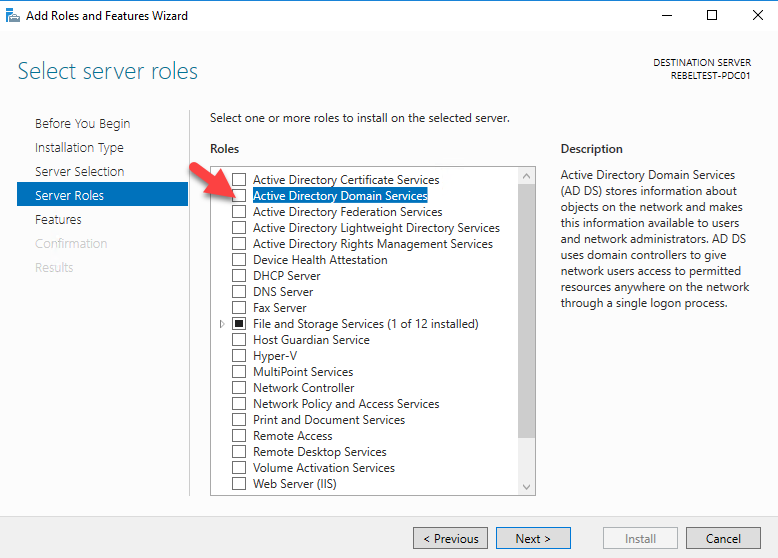
7) In next window from the roles put tick box for active directory domain services. Then it will prompt to show you what are the associated features for the role. Click on add features to add those. Then click next to continue.
2016AD7 2016AD8 2016AD9
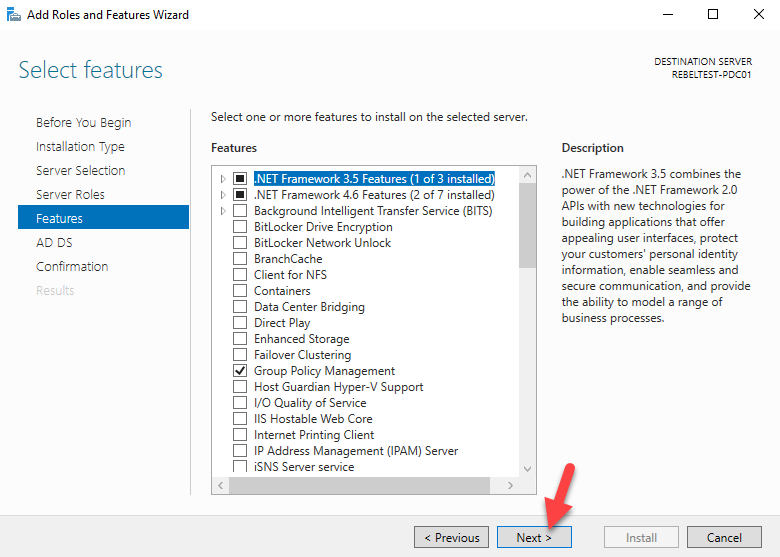
8) The features page, keep it default and click on next to proceed.
2016AD10
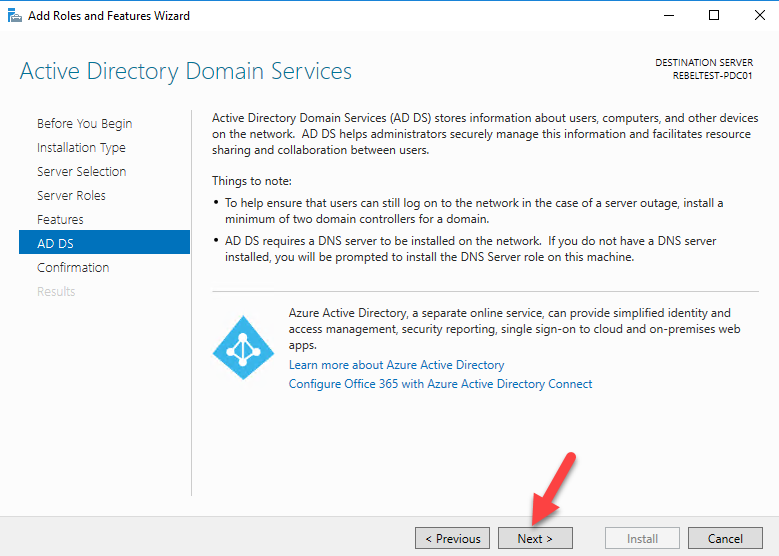
9) In next windows it gives brief description about AD DS service. Click next to proceed.
2016AD11
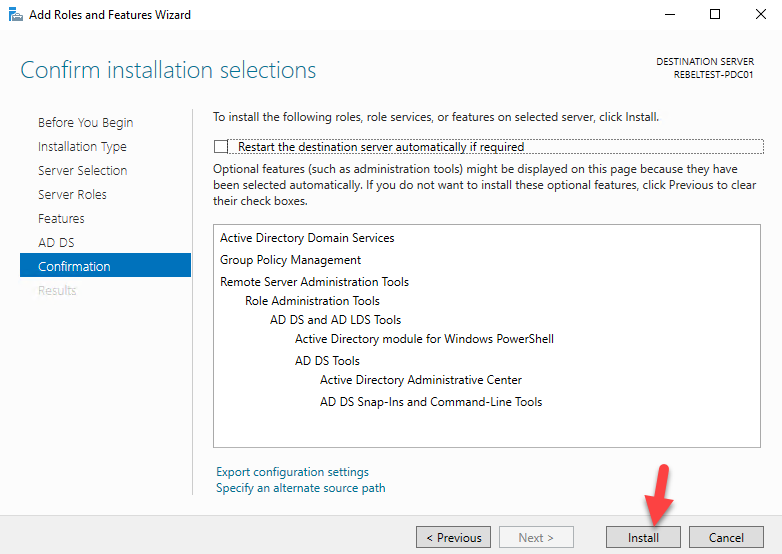
10) Then it will give the confirmation about install, click on install to start the role installation process.
2016AD12
11) Once done, it will start the installation process
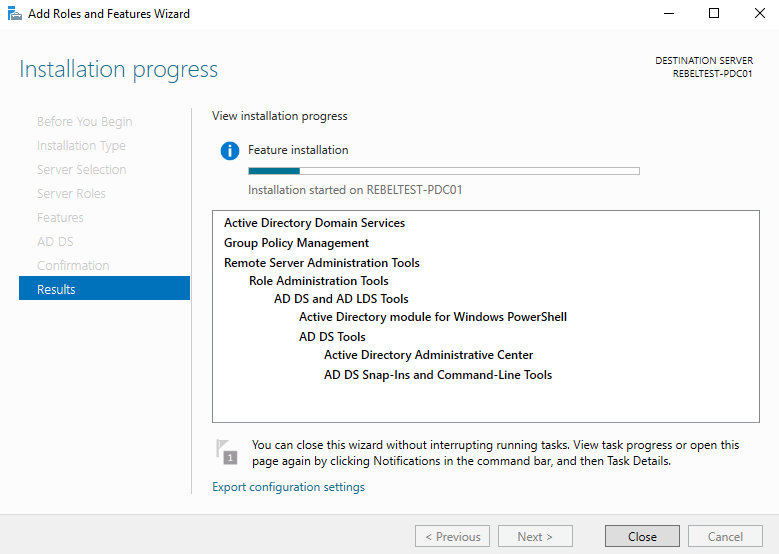
2016AD13
12) Once installation completes, click on option promote this server to a domain controller. 2016AD14
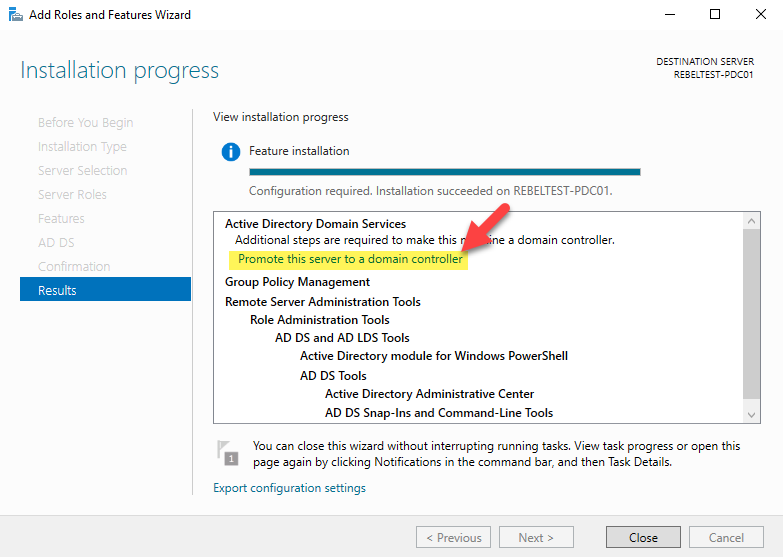
13) Then it will open the active directory configuration wizard. In my demo I am going to setup new forest. But if you adding this to existing domain you can choose relevant option. (I am going to write separate article to cover how you can upgrade from older version of Active Directory). Select the option to add new forest and type FQDN for the domain. Then click next.
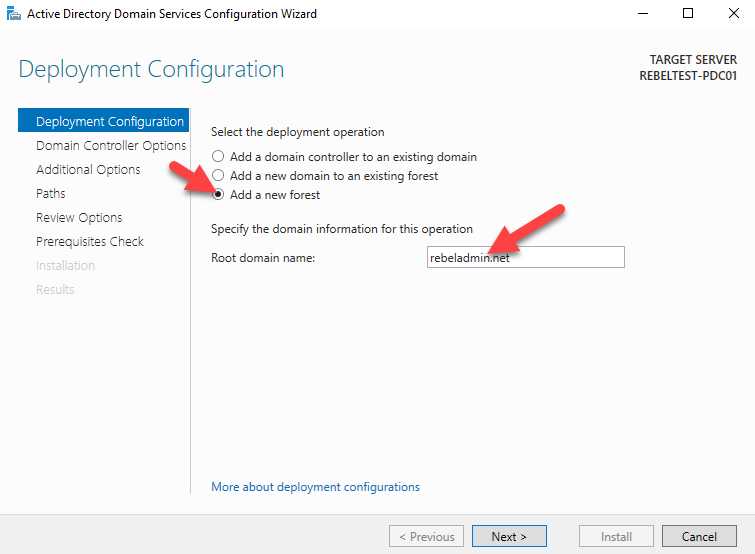
2016AD15
14) In next page you can select the domain and forest functional levels. I am going to set it up with latest. Then type a password for DSRM. Then click next
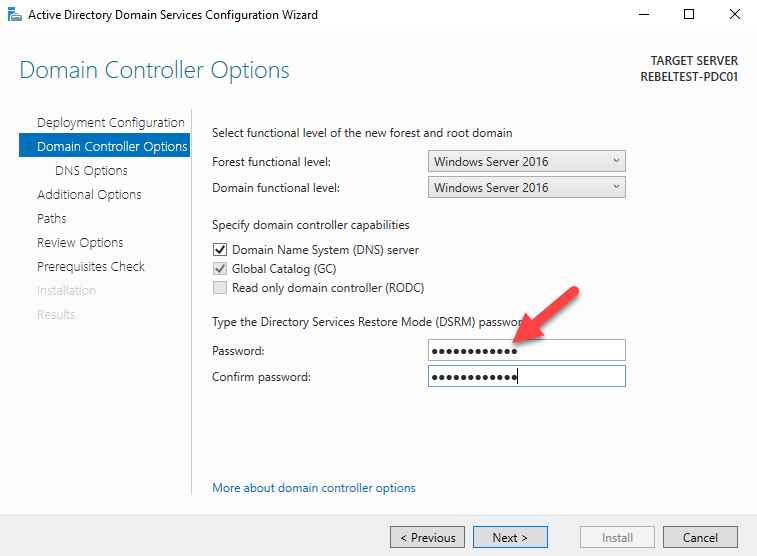
2016AD16
15) For the DNS options, this going to be the first DNS server in new forest. So no need any modifications. Click next to proceed.
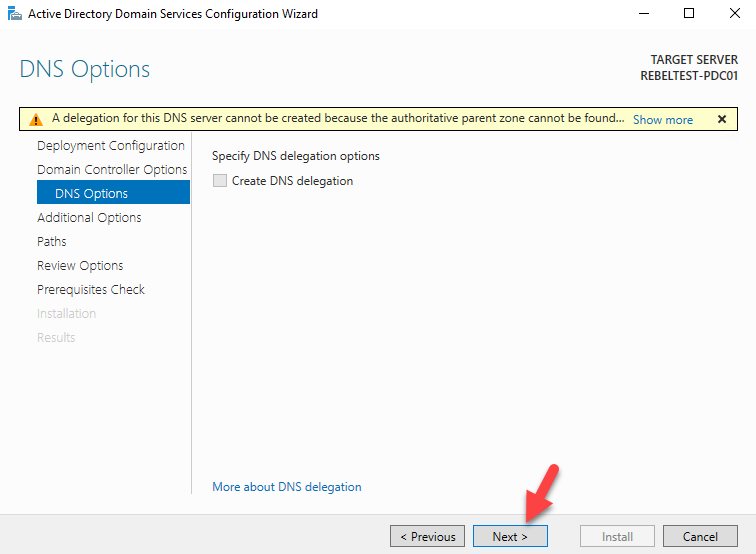
2016AD17
16) For the NETBIOS name keep the default and click next  2016AD18
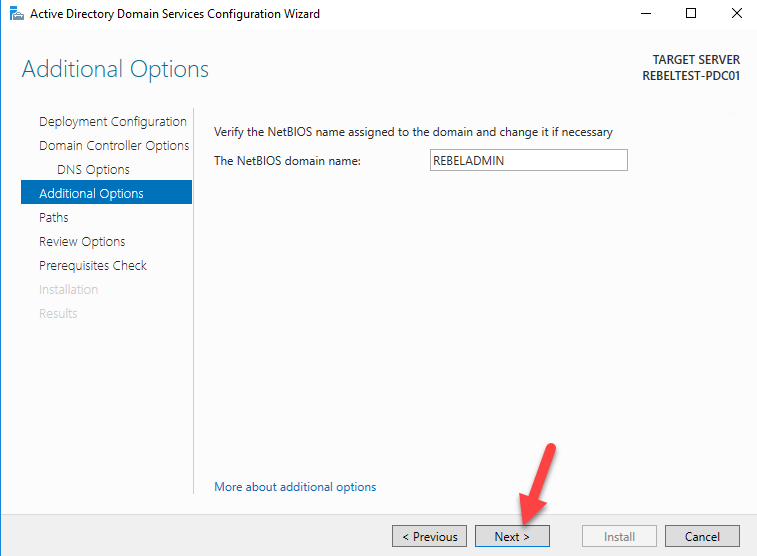
17) Next page is to define the NTDS, SYSVOL and LOG file folders. You can keep default or define different path for these. In demo I will be keeping default. Once changes are done, click next to continue
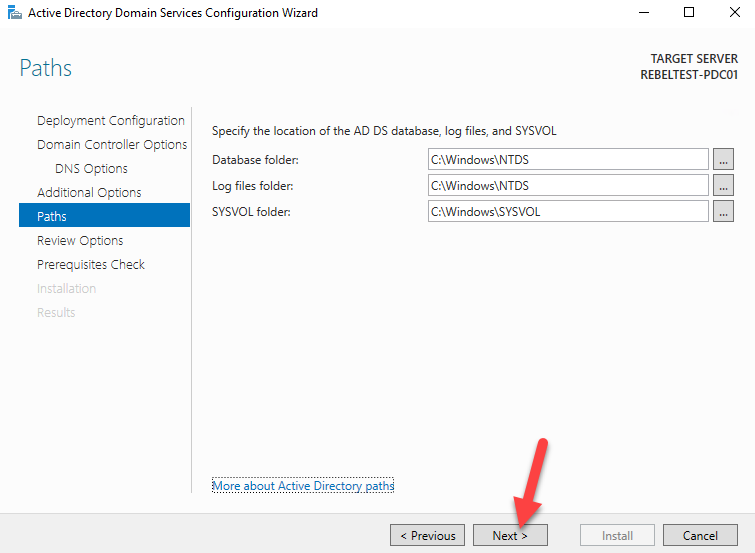
2016AD19
18) Next page will give option to review the configuration changes. If everything okay you can click next to proceed or otherwise can go back and change the settings.
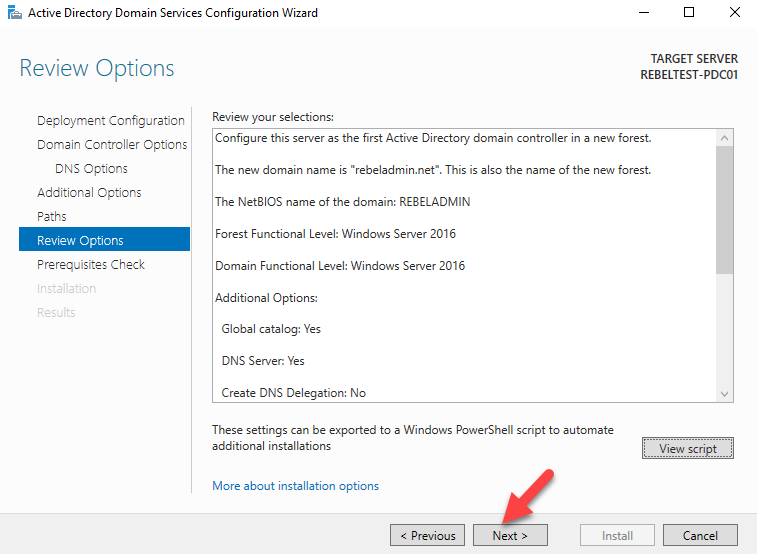
2016AD20
19) In next windows it will do prerequisite check. If it’s all good it will enable option to install. Click on install to begin installation process.
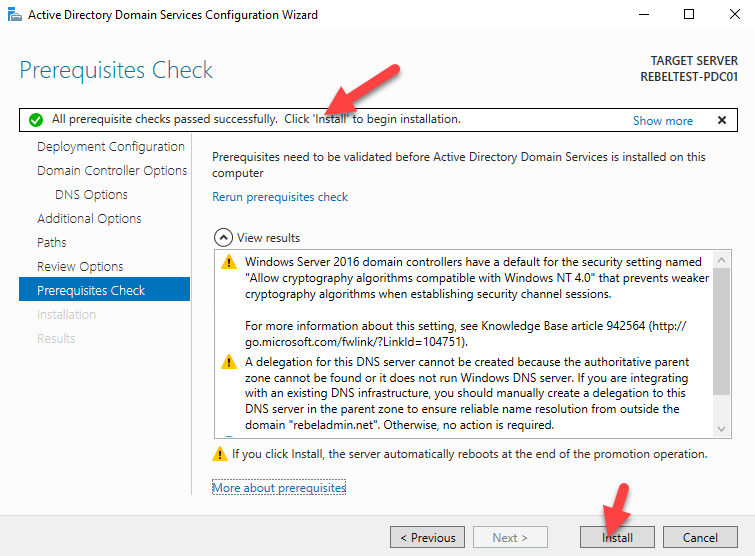
2016AD21
20) Then it will start the installation process.
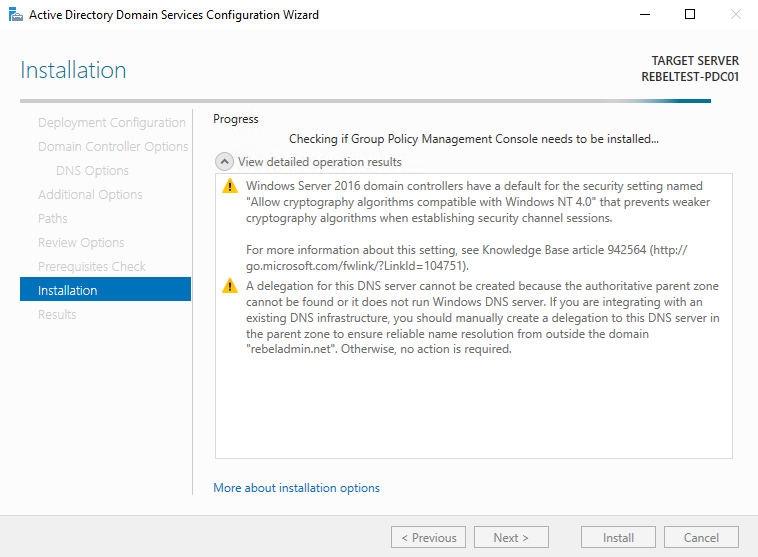
2016AD22
21) After the installation system will restart automatically. Once it comes back log in to the server as domain admin.
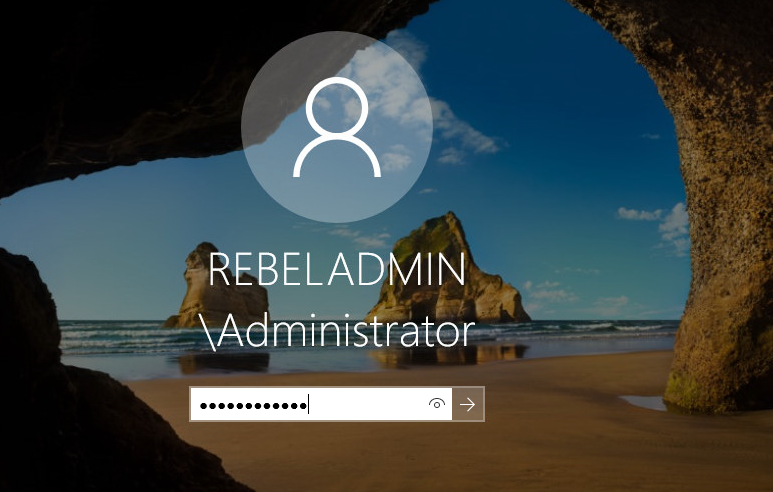
2016AD23
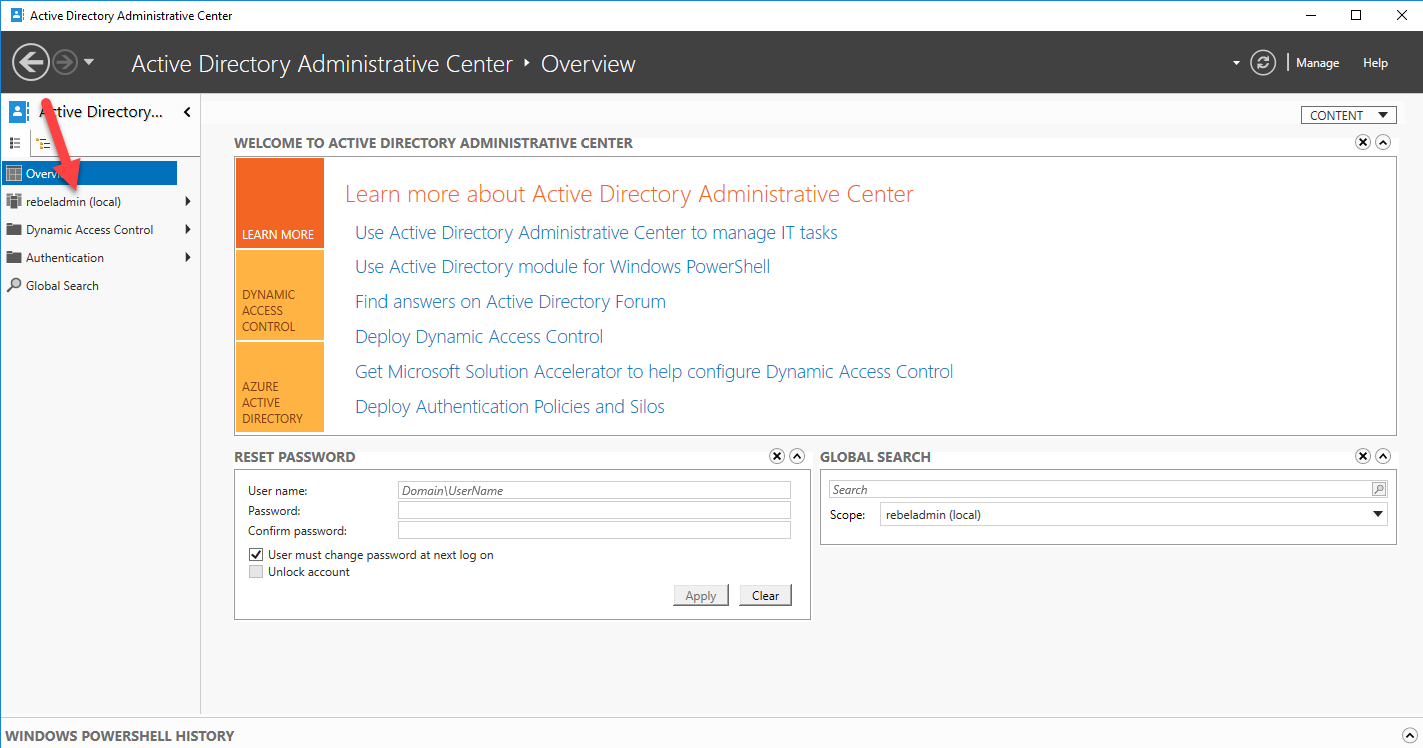
22) Once log in open the powershell (as administrator) and type dsac.exe and press enter. It will open up the active directory administrative center. There you can start managing the resources.
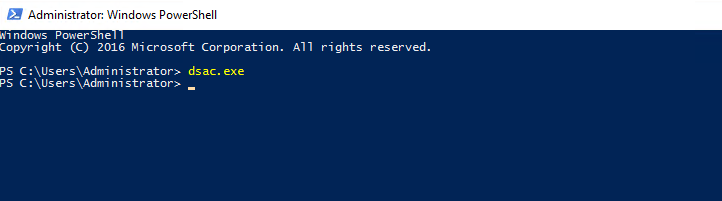
2016AD24 2016AD25
23) Also you can use Get-ADDomain | fl Name,DomainMode and Get-ADForest | fl Name,ForestMode from powershell to confirm domain and forest functional levels
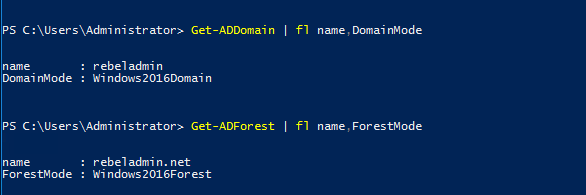
2016AD26
x

Sunday, 3 June 2018

Access Localhost website from mobile

As a developer, I always want to see how my website looks on a mobile device. Although Chrome developer tools allow you to emulate it, you may want to test it on the actual device.

I am using windows so IIS is the web server here, but I believe the concept applies to other OS too.

Follow these steps -

1. Host your website on locall IIS server and make sure it is accesible from the browser on local machine


2. Check the IP address of your windows machine.
  • Go to run and type cmd, right click and run as administrator
  • type ipconfig and not down the IPv4 address
  • This is the IP address of your machine as visible to other devices connected to your wifi network

 3. Bind the website to the IP address of the machine.
  • Open IIS manager and select the website you want to open
  • Click on bindings on the right hand side 
       

  • Open the bindings and select the IP address as noted in step 2 and click ok.


4. Connect your mobile to the same wifi network, open a browser and type IP address, you may have to type port number if the website is hosted on a port other than 80.


Enjoy your website on mobile. Post if you face any issues. Good luck!


Wednesday, 6 July 2016

SQL query result in Random Order


Usually a SQL result is desired either in ascending or descending order based on a column.

But what if you want the result in a random order based on your choice.

Here is an example,

Problem - Display job id and department id of departments 10, 50, 20 in that order. 

Solution - At first, it seems to be a simple sql query but I have to think more on how to get the order 10, 50 and 20, its neither ascending nor descending.

Concept - Introduce a new dummy column in the select list and order by it. Select only two columns from the final result. Below is the query.

select job_id, department_id from (

select job_id, department_id, 1 from employees
where department_id = 10
union
select job_id, department_id, 2 from employees
where department_id = 50
uni
on
select job_id, department_id, 3 from employees
where department_id = 20
order by 3

);

I first did the union of individual results. This is required as I have to introduce a new column in each select query and give it a specific value so that I can order it later. Then, apply ascending order on column number 3 ( dummy column ) of the Union result.

Now, I have the result in required order but with one extra column. To remove it, I do a final select of only job id and department id from the union result.


Hope this was informative!

Thank you.

Tuesday, 19 January 2016

.Net - Visual Studio 2015 Update 1 installation known issues

Below are the common issues that I faced when installing Visual Studio Community.

1. Microsoft .NET Framework 4.6.1 Developer Pack – Incorrect Function
If the "Incorrect function" error occurs, you have to restart your computer.
Workaround:
To work around this issue, restart your computer before you install the Visual Studio 2015 Update 1 package again.
2.  Visual Studio installer gets stuck
If the installer does nothing for a long time its probably stuck . Check if there is any CPU activity . 
In that case, terminate the installer process from task manager and restart the machine.
The installer will start again itself and will continue running. That worked for me.

3. System crash error
Make sure your laptop is on charging mode during the entire setup process. If you plugged the charging off,  you'll probably get the system crash error on typical windows blue screen.

Hope that help :).. please share and follow if you like it.

Monday, 11 January 2016

JavaScript - Best way to traverse an array in JavaScript


There are several ways to traverse through an array in JavaScript. The idea is to access the array elements by an index variable and keep incrementing it until the array length.

But what if some array elements have undefined values , what if the number of array elements having valid values are less than the total length of the array. Such cases are handled by explicit checks on element values and array length.

One of the better way is to use the for .. in statement. It will skip all the undefined values and you don't have to keep track of the valid index values or the array length. Below is the code,


<?xml version="1.0" encoding="utf-8" ?>
<html>
<head>
<title> display all heading types page </title>
<script type="text/javascript">
<!--
var arr1 = [5,,7,8];
for ( var element in arr1)
{
document.writeln(arr1[element]);
}


// -->
</script>
</head>

</html> 

Variable element will have only the valid index values ie the indexes at which array elements have definite values. Thus index value 1 will be skipped as there is no value at arr1[1]. The above code will print 5 7 8 . 


I hope it helps :)

Sunday, 10 January 2016

JavaScript - generate random integers between 2 values


To generate random values, JavaScript provides Math.random() method. This method generates values in the range 0.0 and 1.0, 1.0 excluded. We can use this function according to our requirements.

Here , if I give an example of a six sided dice. we would need a random number between 1 to 6 , both included.

The formula is Math.floor( lower +  Math.random() * upper ).  lower is the starting value and is called shifting value. upper is the maximum value and is called scaling value. Here is the complete code.

<?xml version="1.0" encoding="utf-8" ?>
<html>
<head>
<title> Generate Random Numbers </title>
<script type="text/javascript">
<!--

function getRandom()
{
var ran = Math.floor( 1 + Math.random() * 6);
window.alert(" you got " + ran);
}

// -->
</script>
</head>
<body>
<input type="button" value="next number"                                          onclick="getRandom()" />
</body>
</html> 

Note : If you omit the floor function, it will give you float values and also values between 6 and 7, which is not the requirement. However, if you require float values you can skip floor function and check if the value is > 6 then make it back to 6 before it is displayed.


I hope it was useful  :) 

Thursday, 7 January 2016

HTML/CSS - drop down menu using anchor ( a ) element and display attribute


Below code creates a simple drop down menu using the anchor ( <a> ) element and display property in CSS.

XHTML code :

<?xml version="1.0" encoding="utf-8" ?>
<html>
<head>
<title> use display property </title>
<link type="text/css" rel="stylesheet" href="display.css" />
</head>
<body>
<div id="mainmenu"><a class="mainitem" href="#">Menu</a>
<a class="subitem" href="#">Food</a>
<a class="subitem" href="#">Beverages</a>
<a class="subitem" href="#">desserts</a>
</div>
</body>
</html>

display.css

.subitem{
display:none;
}

#mainmenu
{
width:5em;
}
#mainmenu:hover a.subitem{
display:block;
}

#mainmenu a.subitem{
display:none;
}


display:block will display the anchors as one block.


Hope that helps :). Share if you like it.